IIS, Web

Redirect All HTTP Requests To HTTPS With IIS URL Rewrite

Make sure you obtain the appropriate version of URL Rewrite for your version of IIS.

Once you have the URL Rewrite module installed then create a new blank inbound rule and give it a name (mine is Redirect to HTTPS).

Once you have the rule created select to match the pattern with regular expressions using .* as the pattern:

Capture1

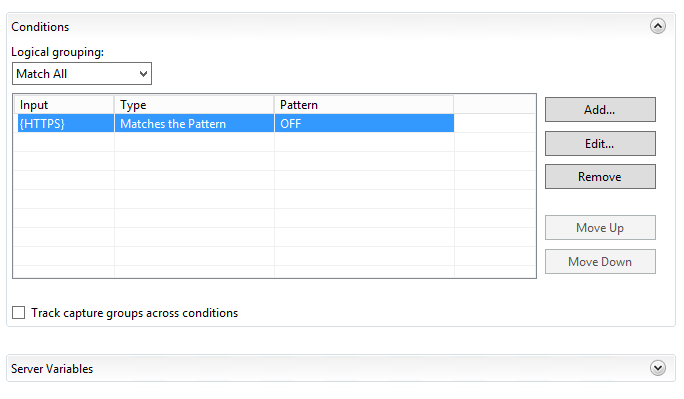
For your conditions, add a condition with the input as {HTTPS} matching the pattern of OFF:

Capture2

For the action select Redirect and set your Redirect URL to https://{HTTP_HOST}/{R:0}. Select to append query string and indicate the Redirect type is a Permanent (301):

Capture3

Once this is completed (and assuming you have configured your sites for SSL) then you can test it by browsing any page or directory on your site with HTTP and watch it change to HTTPS. Easy enough, right? Hope this helps.

HTML, JavaScript, Uncategorized, Web

How To Detect The Edge Browser And Redirect To Another Page In JavaScript

There will likely be cases where you have sites that were built for IE but are not caught up to Edge yet. What do you do in the interim? One idea that I applied on a legacy site was to inform take the Edge user to a specific page. You can always do a multitude of things when dealing with how to address the user (alerts, redirects, updates to labels on pages, etc.). I just want to show an easy way to detect and redirect.

The first thing you need to know is the Edge Browser’s User Agent String:

Mozilla/5.0 (Windows NT 10.0; Win64; x64) AppleWebKit/537.36 (KHTML, like Gecko) Chrome/42.0.2311.135 Safari/537.36 Edge/12.9600

You can take advantage of the navigator.userAgent property in JavaScript and do a quick check of it. In this example I check for “Edge” and redirect if it is contained in the string.

Place the following in a script tag inside of the head section of your html:

<script type="text/javascript">
var ver = navigator.userAgent;
if (ver.indexOf('Edge') !== -1)
{
window.location = "https://www.afakewebsite.com/edgemessage.html";
}
else
{
// Not Edge, do nothing
}
</script>

Hope it helps.

C#, HTML, JavaScript, Programming, Web

Write a JavaScript/HTML Form Submit Post From C# APSX Code Behind

There may be a case where you are taking information from a form and need to post it to a web site somewhere else. One quick method of performing that post is to execute it from the code behind using C# (via context.response) and JavaScript. This is a scaled down example of a case where I was submitting a POST from the code behind of a web part control:

A couple things to note:

  • You can add as many fields as you wish to post, I am only using two
  • You can use string.Format to get C# variables to put directly in the POST
protected string value1;
protected string value2;

value1 = "something";
value2 = "something else";

Context.Response.Write("&lt;form name='Form1' id='Form1' method='post' action='https://www.mywebsitetopostto.com/example'&gt;");
Context.Response.Write("&lt;input type='hidden' name='__VIEWSTATE' id='__VIEWSTATE' value='' /&gt;");
Context.Response.Write(string.Format("&lt;input type='hidden' name='txtValue1' id='txtValue1' runat='server' value='{0}' /&gt;", value1));
Context.Response.Write(string.Format("&lt;input type='hidden' name='txtValue2' id='txtValue2' runat='server' value='{0}' /&gt;", value2));
Context.Response.Write("&lt;/form&gt;");
Context.Response.Write("document.Form1.submit();");
Context.Response.Flush();
Context.Response.End();

Ideally you would use this in a case where you are posting content and the page you are posting to will process and serve something after the form that receives your post processes what you sent. Please do not use this snippet and blame me for a blank page 🙂

C#, Programming, SharePoint, Web

Convert A Links List To A DropDownList By A Web Part In SharePoint 2013 (C#)

So I have been enjoying the benefit of Mike Smith’s article for a while now (http://techtrainingnotes.blogspot.com/2010/12/sharepoint-convert-links-list-to.html). A client I did a project for was wanting to carry this functionality forward to 2013. The problem: this method didn’t work in 2013.

So I took a programmatic approach to lose the JavaScript dependency. It also will sort the dropdown names by what you type as the description by using the sortedlist in the code behind. It’s fairly simple, here’s what I did:

  • Created a links list and populated some URLs and Descriptions (!!! You need both for below to work, otherwise remove the description dependency in my code !!!)
  • Create a SharePoint 2013 Visual Web Part project
  • Add the dropdownlist control to the control

In the .ascx control I have:

<asp:DropDownList ID="linkDropDown" runat="server" Font-Names="Arial" Font-Size="10pt"
Width="300px" OnSelectedIndexChanged="linkDropDown_SelectedIndexChanged" AutoPostBack="true" EnableViewState="true">
<asp:ListItem Text="Link to ..." Value="#"></asp:ListItem>
</asp:DropDownList>
  • Add the code to the code behind of the control

Now the code behind, here’s my using statements:

using System;
using System.ComponentModel;
using System.Web.UI.WebControls.WebParts;
using Microsoft.SharePoint;
using System.Collections;
using System.Web.UI;
using System.Web.UI.HtmlControls;
using System.Web.UI.WebControls;

and here is what I have in the Page_Load and the SelectedIndexChanged event

protected void linkDropDown_SelectedIndexChanged(object sender, EventArgs e)
{
Context.Response.Redirect(linkDropDown.SelectedValue.ToString());
}

protected void Page_Load(object sender, EventArgs e)
{
SortedList sortedLists = new SortedList();

using (SPSite siteCol = new SPSite("http://mysharepoint2013site/"))
{
using (SPWeb web = siteCol.RootWeb)
{
SPList list = web.GetList("/Lists/NameOfLinksList");
SPListItemCollection items = list.GetItems();

foreach (SPListItem it in items)
{
SPFieldUrlValue fieldValue = new SPFieldUrlValue(it["URL"].ToString());
string description = fieldValue.Description;
string url = fieldValue.Url;
sortedLists.Add(description, url);
}
}

IDictionaryEnumerator enumerator = sortedLists.GetEnumerator();
while (enumerator.MoveNext())
{
ListItem listitem = new ListItem();
listitem.Text = enumerator.Key.ToString();
listitem.Value = enumerator.Value.ToString();
linkDropDown.Items.Add(new ListItem(listitem.Text.ToString(), listitem.Value.ToString()));
}
}

Deploy and enjoy!

C#, Programming, SharePoint, Web

Convert Doc/Docx Files To PDF In SharePoint 2013 Using Word Automation Services (C#)

Most of you whom are searching around on this are aware of the solution for SharePoint 2010 (https://msdn.microsoft.com/en-us/library/office/ff181518(v=office.14).aspx). And chances are after you tried on your own to do this for 2013 that there was no List Definition type in VS, right? So after finding this (https://camerondwyer.wordpress.com/2013/09/20/how-to-create-a-custom-sharepoint-list-definition-using-visual-studio-2012/) I decided to frankenstein the old methods with the updated way to do it in Visual Studio. The results of the successful experiment are below.

Code It

This article describes the following steps to show how to call the Word Automation Services to convert a document:

  1. Creating a SharePoint 2013 Empty Project and Adding the SharePoint list.
  2. Adding a reference to the Microsoft.Office.Word.Server assembly.
  3. Adding an event receiver.
  4. Adding the sample code to the solution.

Creating a SharePoint 2013 List Definition (sort of) Application in Visual Studio 2012

This article uses a SharePoint 2013 list definition application for the sample code.

To create a SharePoint 2013 list definition application in Visual Studio 2012

  1. Start Microsoft Visual Studio 2012 as an administrator.
  2. In Visual Studio 2012 select File | New Project
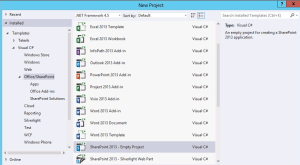
  3. Select Templates | Visual C# | Office/SharePoint | SharePoint 2013 – Empty Project, Provide a name and location for the project/solution and OKcapture1-vsprojectName the project and solution something meaningful (ConvertWordToPDF perhaps?).
    To create the solution, click OK.
  4. Select a site to use for debugging and deployment.
  5. Select the site to use for debugging and the trust level for the SharePoint solution.
    Note
    Make sure to select the trust level Deploy as a farm solution. If you deploy as a sandboxed solution, it does not work because the solution uses the Microsoft.Office.Word.Server assembly. This assembly does not allow for calls from partially trusted callers.
  6. To finish creating the solution, click Finish.
  7. Once the new solution has been created, we can use the new Visual Designer to create the List Definition. Right click the project in the solution explorer and select Add | New Item
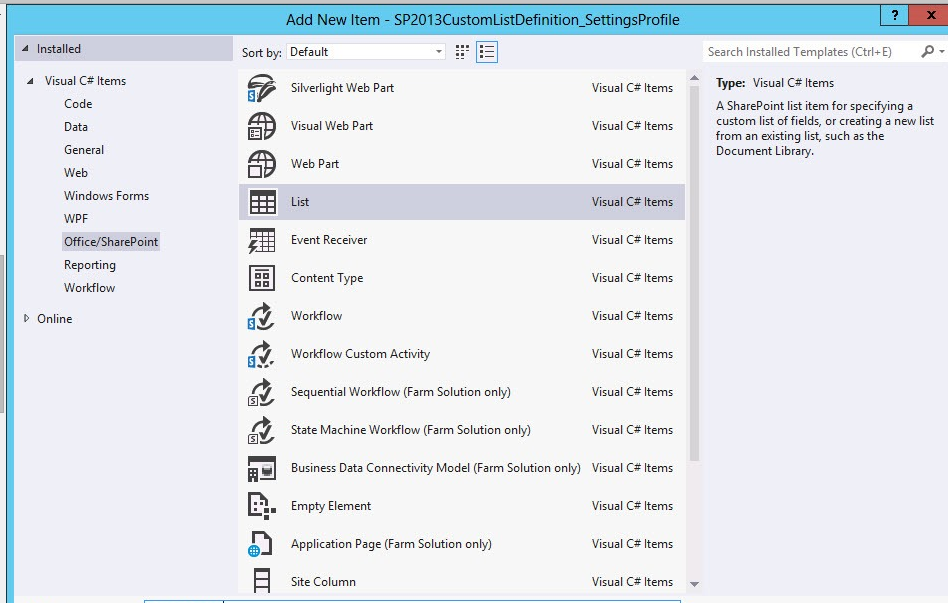
  8. Select Visual C# Items | Office/SharePoint | List, provide a name and click OK
  9. Provide a display name for the list. Go with the “Create a customizable list template and a list instance of it” and choose the Document Library.

Adding a Reference to the Microsoft Office Word Server Assembly

To use Word Automation Services, you must add a reference to the Microsoft.Office.Word.Server to the solution.

To add a reference to the Microsoft Office Word Server Assembly

  1. In Visual Studio, from the Project menu, select Add Reference.
  2. Locate the assembly. By using the Browse tab, locate the assembly. The Microsoft.Office.Word.Server assembly is located in the SharePoint 2013 ISAPI folder. This is usually located at c:\Program Files\Common Files\Microsoft Shared\Web Server Extensions\15\ISAPI\. After the assembly is located, click OK to add the reference.

Adding an Event Receiver

This article uses an event receiver that uses the Microsoft.Office.Word.Server assembly to create document conversion jobs and add them to the Word Automation Services conversion job queue.

To add an event receiver

  1. In Visual Studio, on the Project menu, click Add New Item.
  2. In the Add New Item dialog box, in the Project Templates pane, click the Visual C# SharePoint 2013 template.
  3. In the Templates pane, click Event Receiver.
  4. Name the event receiver ConvertWordToPDFEventReceiver and then click Add.
    The event receiver converts Word Documents after they are added to the List. Select the An item was added item from the list of events that can be handled.
  5. Click Finish to add the event receiver to the project.

Adding the Sample Code to the Solution

Replace the contents of the ConvertWordToPDFEventReceiver.cs source file with the following code. Just remember to make sure you replace “Word Automation Services” with the name of it in the web applications in central admin.

using System;
using System.Security.Permissions;
using Microsoft.SharePoint;
using Microsoft.SharePoint.Security;
using Microsoft.SharePoint.Utilities;
using Microsoft.SharePoint.Workflow;

using Microsoft.Office.Word.Server.Conversions;

namespace ConvertWordToPDF.ConvertWordToPDFEventReceiver
{
  /// &lt;summary&gt;
  /// List Item Events
  /// &lt;/summary&gt;
  public class ConvertWordToPDFEventReceiver : SPItemEventReceiver
  {
    /// &lt;summary&gt;
    /// An item was added.
    /// &lt;/summary&gt;
    public override void ItemAdded(SPItemEventProperties properties)
    {
      base.ItemAdded(properties);

      // Verify the document added is a Word document
      // before starting the conversion.
      if (properties.ListItem.Name.Contains(".docx") 
        || properties.ListItem.Name.Contains(".doc"))
      {
        //Variables used by the sample code.
        ConversionJobSettings jobSettings;
        ConversionJob pdfConversion;
        string wordFile;
        string pdfFile;

        // Initialize the conversion settings.
        jobSettings = new ConversionJobSettings();
        jobSettings.OutputFormat = SaveFormat.PDF;

        // Create the conversion job using the settings.
        pdfConversion = 
          new ConversionJob("Word Automation Services", jobSettings);

        // Set the credentials to use when running the conversion job.
        pdfConversion.UserToken = properties.Web.CurrentUser.UserToken;

        // Set the file names to use for the source Word document
        // and the destination PDF document.
        wordFile = properties.WebUrl + "/" + properties.ListItem.Url;
        if (properties.ListItem.Name.Contains(".docx"))
        {
          pdfFile = wordFile.Replace(".docx", ".pdf");
        }
        else
        {
          pdfFile = wordFile.Replace(".doc", ".pdf");
        }

        // Add the file conversion to the conversion job.
        pdfConversion.AddFile(wordFile, pdfFile);

        // Add the conversion job to the Word Automation Services 
        // conversion job queue. The conversion does not occur
        // immediately but is processed during the next run of
        // the document conversion job.
        pdfConversion.Start();

      }
    }
  }
}

Deploy and enjoy!