Active Directory, ADFS, Certificates, Troubleshooting, WAP, Web

Getting Event ID 144 On Your Web Application Proxy When Trying To Connect To ADFS?

Perhaps as you were setting up your brand new shiny 2012 R2 Web Application Proxy (WAP) to connect to your 2012 R2 Active Directory Federation Services (ADFS 3.0) server you ran into a 404 error in the web browser followed by this error message in the event viewer logs when trying to do your idpinitiated sign on test from the internet using the WAP DNS URL:

Event ID 144

The Federation Service Proxy blocked an illegitimate request made by a client, as there was no matching endpoint registered at the proxy.

Huh?!?!? Okay, so here is one of the reasons why it is generating: the root part of your DNS you use at the proxy must match the DNS you have on your internal ADFS server.

For example, if you configured your internal federation service name to be different (adfs.internaldomain.com) than the web application proxy name (adfs.yourexternalweb.com) then when the proxy tries to interpret the request it sees the mismatching DNS as an illegitimate request, thus blocking it. And while the WAP will publish various web applications that have different DNS this does not cover the initial configuration of the WAP when it is initially pointed to the internal ADFS server.

So what’s the solution?

Get a DNS entry on your internal domain to point to your internal ADFS server using what you used for the web application proxy. These names MUST match for the WAP to work. If you cannot get a DNS entry on your internal domain to match the DNS on the external domain then my recommendation would be to use your etc/hosts file to point your proxy to your ADFS server.

Once you have the DNS entry or etc/hosts entry in place for your WAP and ADFS server then do the following:

1. Put the adfs.yourexternalweb.com public cert (with private key) on the ADFS server to be used for communications.
2. (Assuming ADFS has already been configured) Remove the adfs role from the ADFS server and do not save the databases and reboot.
4. Install the ADFS role with the new matching Federation Service name (adfs.yourexternalweb.com). Make sure to point to the newly installed certificate. Do not utilize old database information. Create a new WID database.
5. Remove the WAP role from the WAP server.
6. Reboot.
7. Reinstall WAP role and Configure. Once post deployment has completed successfully do NOT create an app for ADFS as it is automatically publishing ADFS as a proxy under the covers.

Hope this helps. Questions are welcome.

CRM, IIS, Troubleshooting

Resolving CRM XRMServices System.ServiceModel.ServiceActivationException Issues With Multiple IIS Site Bindings

So if you ever attempt to go from http to https (or vice versa) on your CRM environment be aware that you may face the following issue with your XRM Services if you have multiple bindings set in IIS:

WebHost failed to process a request.
 Sender Information: System.ServiceModel.ServiceHostingEnvironment+HostingManager/12547953
 Exception: System.ServiceModel.ServiceActivationException: The service '/Dev/XRMServices/2011/Organization.svc' cannot be activated due to an exception during compilation. The exception message is: The value could not be added to the collection, as the collection already contains an item of the same type: 'System.ServiceModel.Description.UseRequestHeadersForMetadataAddressBehavior'. This collection only supports one instance of each type.
Parameter name: item. ---> System.ArgumentException: The value could not be added to the collection, as the collection already contains an item of the same type: 'System.ServiceModel.Description.UseRequestHeadersForMetadataAddressBehavior'. This collection only supports one instance of each type.
Parameter name: item
 at System.Collections.Generic.KeyedByTypeCollection`1.InsertItem(Int32 index, TItem item)
 at Microsoft.Crm.Extensibility.SdkServiceEndpointBuilder.AddDefaultPorts(ServiceHost serviceHost, PortSchemeDictionary portSchemes)
 at Microsoft.Crm.Extensibility.SdkServiceEndpointBuilder.AddDefaultEndpoint(ServiceHost serviceHost, Type implementedContract)
 at Microsoft.Crm.Extensibility.SdkServiceEndpointBuilder.BuildEndpoints(ServiceHost serviceHost, Type implementedContract, Func`1 messageInspectorFactory)
 at Microsoft.Crm.Extensibility.SdkServiceHost.InitializeRuntime()
 at System.ServiceModel.ServiceHostBase.OnOpen(TimeSpan timeout)
 at System.ServiceModel.Channels.CommunicationObject.Open(TimeSpan timeout)
 at System.ServiceModel.ServiceHostingEnvironment.HostingManager.ActivateService(ServiceActivationInfo serviceActivationInfo, EventTraceActivity eventTraceActivity)
 at System.ServiceModel.ServiceHostingEnvironment.HostingManager.EnsureServiceAvailable(String normalizedVirtualPath, EventTraceActivity eventTraceActivity)
 --- End of inner exception stack trace ---
 at System.ServiceModel.ServiceHostingEnvironment.HostingManager.EnsureServiceAvailable(String normalizedVirtualPath, EventTraceActivity eventTraceActivity)
 at System.ServiceModel.ServiceHostingEnvironment.EnsureServiceAvailableFast(String relativeVirtualPath, EventTraceActivity eventTraceActivity)
 Process Name: w3wp
 Process ID: 8388

Why you ask?! This is due to the fact that CRM is quite finicky about only wanting one particular binding for the CRM instance. Having the multiple bindings without properly setting it up will cause some conflicts (starting with the one above). So the solution here is to ensure you only have one binding in IIS. Once you have your bindings set up properly be sure to perform an IISRESET on the web server. This should resolve the error and make the XRMServices play nice. If it does not check to make sure you do not have any hard-coded values of URLs or ports anywhere. Hope this helps.

C#, HTML, JavaScript, JSON, Programming, Web

Use No Captcha reCaptcha In ASP.Net Web Application Form Page With C#, JSON and JavaScript

Users are getting more and more tired of interpreting images with random numbers or letters that take 2-3 tries to get. Google has a new release of the reCaptcha to include a  “No Captcha” feature. You can read about that more here. Here are the steps that I took to include this newer version into a ASP.Net web application.

  • Obtain a google account and sign up for reCaptcha 
  • Create a Visual Studio C# based web forms application and create a page where you will have your reCaptcha to live
  • Download Json via NuGet (instructions are here)
  • Once you have reCaptcha information be sure to insert the following in the head section of your web page:
 
<script src="https://www.google.com/recaptcha/api.js" type="text/javascript"></script> 
  • Then place in your web page where you want the reCaptcha to live. Remember to replace “yoursitekey” with the Google reCaptcha site key:
<div class="g-recaptcha" data-sitekey="yoursitekey"></div>


  • Create a class in your web application called ReCaptchaClass (credit for class and credit for proxy) and put the following code into the class. Remember to replace “yoursecretkeygoeshere” with the Google reCaptcha secret key:
using Newtonsoft.Json;
    public class ReCaptchaClass
    {
        public static string Validate(string EncodedResponse)
        {
            var client = new System.Net.WebClient();
            IWebProxy defaultWebProxy = WebRequest.DefaultWebProxy;
            defaultWebProxy.Credentials = CredentialCache.DefaultCredentials;
            client.Proxy = defaultWebProxy;
            string PrivateKey = "yoursecretkeygoeshere";
            var GoogleReply = client.DownloadString(string.Format("https://www.google.com/recaptcha/api/siteverify?secret={0}&amp;response={1}", PrivateKey, EncodedResponse));
            var captchaResponse = Newtonsoft.Json.JsonConvert.DeserializeObject(GoogleReply);
            return captchaResponse.Success;
        }
        [JsonProperty("success")]
        public string Success
        {
            get { return m_Success; }
            set { m_Success = value; }
        }

        private string m_Success;
        [JsonProperty("error-codes")]
        public List ErrorCodes
        {
            get { return m_ErrorCodes; }
            set { m_ErrorCodes = value; }
        }
        private List m_ErrorCodes;
    }
  • Once the class is created place the following snippet in the code behind of your page (likely in a button click event of some kind):
string EncodedResponse = Request.Form["g-Recaptcha-Response"];
bool IsCaptchaValid = (ReCaptchaClass.Validate(EncodedResponse) == "True" ? true : false);

if (IsCaptchaValid) {
    //Valid Request
}

That’s it! Easy enough, right? I hope it helps. Questions are always welcome.

IIS, Web

Redirect All HTTP Requests To HTTPS With IIS URL Rewrite

Make sure you obtain the appropriate version of URL Rewrite for your version of IIS.

Once you have the URL Rewrite module installed then create a new blank inbound rule and give it a name (mine is Redirect to HTTPS).

Once you have the rule created select to match the pattern with regular expressions using .* as the pattern:

Capture1

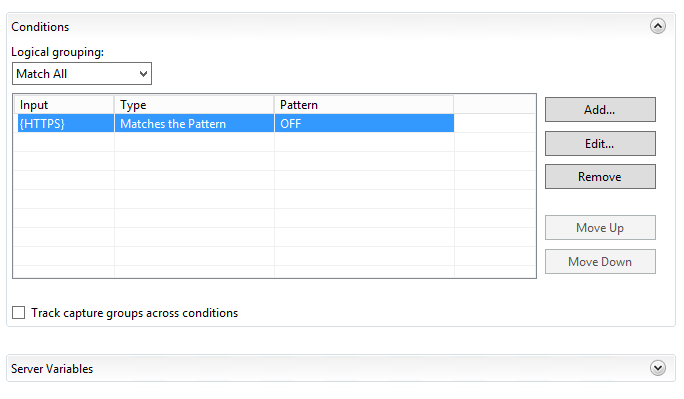
For your conditions, add a condition with the input as {HTTPS} matching the pattern of OFF:

Capture2

For the action select Redirect and set your Redirect URL to https://{HTTP_HOST}/{R:0}. Select to append query string and indicate the Redirect type is a Permanent (301):

Capture3

Once this is completed (and assuming you have configured your sites for SSL) then you can test it by browsing any page or directory on your site with HTTP and watch it change to HTTPS. Easy enough, right? Hope this helps.

HTML, JavaScript, Uncategorized, Web

How To Detect The Edge Browser And Redirect To Another Page In JavaScript

There will likely be cases where you have sites that were built for IE but are not caught up to Edge yet. What do you do in the interim? One idea that I applied on a legacy site was to inform take the Edge user to a specific page. You can always do a multitude of things when dealing with how to address the user (alerts, redirects, updates to labels on pages, etc.). I just want to show an easy way to detect and redirect.

The first thing you need to know is the Edge Browser’s User Agent String:

Mozilla/5.0 (Windows NT 10.0; Win64; x64) AppleWebKit/537.36 (KHTML, like Gecko) Chrome/42.0.2311.135 Safari/537.36 Edge/12.9600

You can take advantage of the navigator.userAgent property in JavaScript and do a quick check of it. In this example I check for “Edge” and redirect if it is contained in the string.

Place the following in a script tag inside of the head section of your html:

<script type="text/javascript">
var ver = navigator.userAgent;
if (ver.indexOf('Edge') !== -1)
{
window.location = "https://www.afakewebsite.com/edgemessage.html";
}
else
{
// Not Edge, do nothing
}
</script>

Hope it helps.