Skip to content

@JaredMeredith

Learn. Share. Repeat.

Contact

  • Blog
  • About Me
  • Strengths Finder Top 5
    • Strengths Finder All 34
  • 16Peronalities
  • Builder Profile 10
  • Sign Into Your SharePoint 2013 Site As A Different User

    03/15/2016

    +

    +

    +

    +

    +

    +

    If you have SharePoint configued to use NTLM with Integrated Windows Authentication (IWA) then it can be tricky to come into your portal as someone other than yourself. There is a cool way to force SharePoint to present a login prompt to check your credentials again. This is very useful especially when you are trying to test with other accounts.

    The trick is to append:

     
    /_layouts/15/closeConnection.aspx?loginasanotheruser=true
    

    to your site collection URL. So if our URL was “http://yoursharepointsite” then the example would be:

     
    http://yoursharepointsite/_layouts/15/closeConnection.aspx?loginasanotheruser=true
    

    Hope this helps, questions are welcome.

    Help me out and share!

    • Email a link to a friend (Opens in new window) Email
    • Print (Opens in new window) Print
    • Share on LinkedIn (Opens in new window) LinkedIn
    • Share on Facebook (Opens in new window) Facebook
    • Share on X (Opens in new window) X
    • Share on Reddit (Opens in new window) Reddit
    • Share on Tumblr (Opens in new window) Tumblr
    • More
    • Share on Pinterest (Opens in new window) Pinterest
    • Share on Telegram (Opens in new window) Telegram
    • Share on WhatsApp (Opens in new window) WhatsApp
    Like Loading…

    +

    +

    +

    +

    +

    +

    + HTML, IIS, SharePoint, Troubleshooting, Web
    + 2013, Link, login, logout, SharePoint, testing, URL, user

    +

    +

    +

    +

    +

    +

    +

    +

    +

    +

    +

    +

  • Help! Need Help Diagnosing A 500 Errors In SharePoint? Try This…

    03/11/2016

    +

    +

    +

    +

    +

    +

    Imagine the nightmare…you decided to sneak in a web part deployment in right before the start of the business day. Right after your deployment you see that the site is about to come back up…and…then nothing. A blank screen. In desperation you open Internet Explorer to try and see if it loads there as well..nothing but a 500 error. Then, the feeling rushes over you that this was a very bad decision. While we should address why you were doing an early morning deployment we shall spare you. 🙂 So what do you do now?

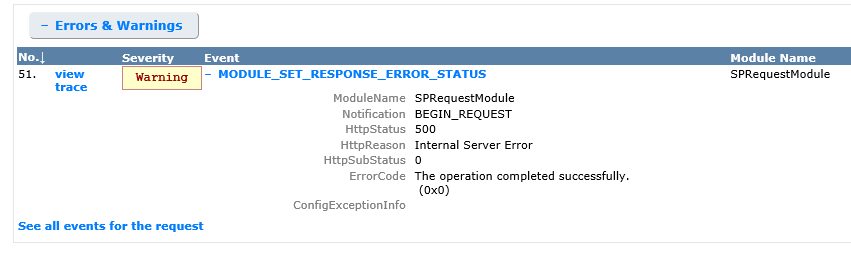
    One of the best ways to see what is going on with a 500 error is to enabled Failed Request Tracing in IIS for the web site in question. Once enabled you can replicate the issue by refreshing the browser a few times; this should be more than enough to capture a few. Once captured then you will usually see where the issue is identified (especially with web.config changes that happen).

    To do this:

    1) Open IIS

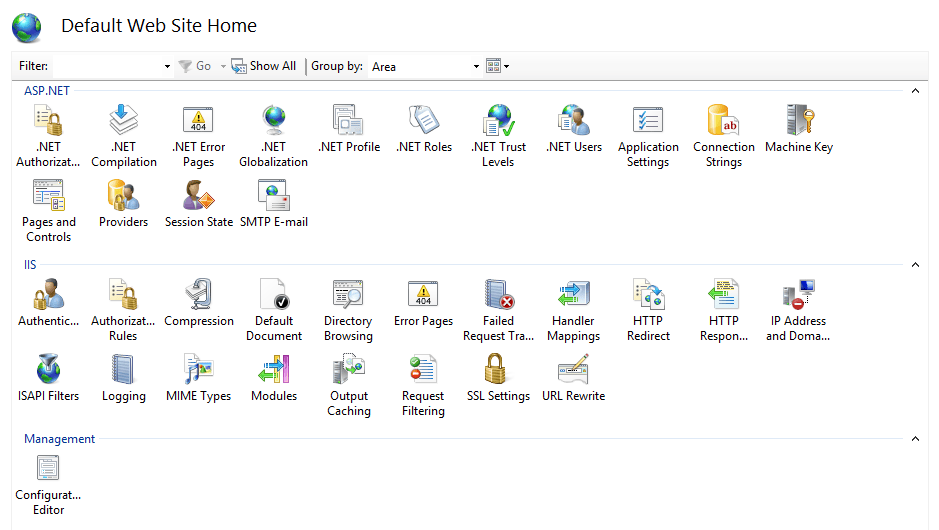
    2) Select the web site in question and open the Features View

    3) Under the IIS section select “Failed Request Tracing” by double-clicking it

    FRT1

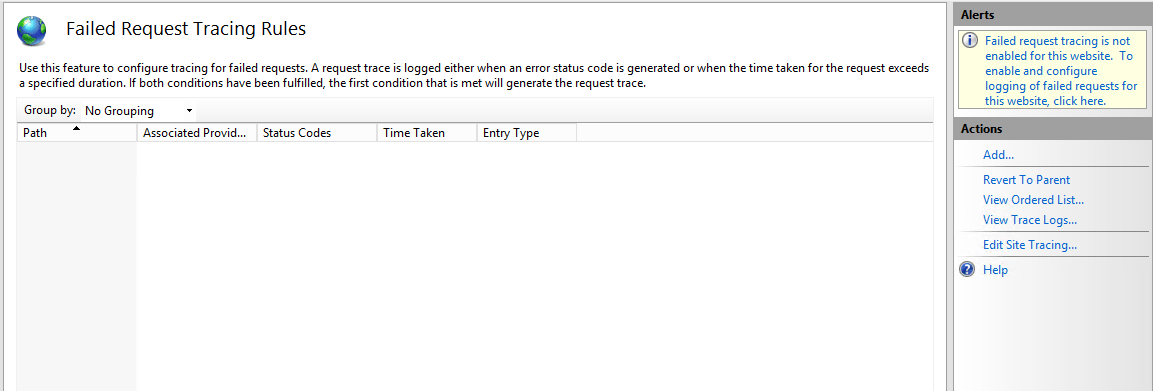
    4) In the top right hand corner click the message in the Alerts section

    FRT2

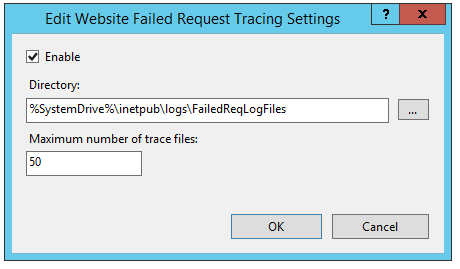
    5) When the pop-up comes up then select to enable and take the default directory (unless you need it elsewhere, then specify another location) and hit OK

    FR3

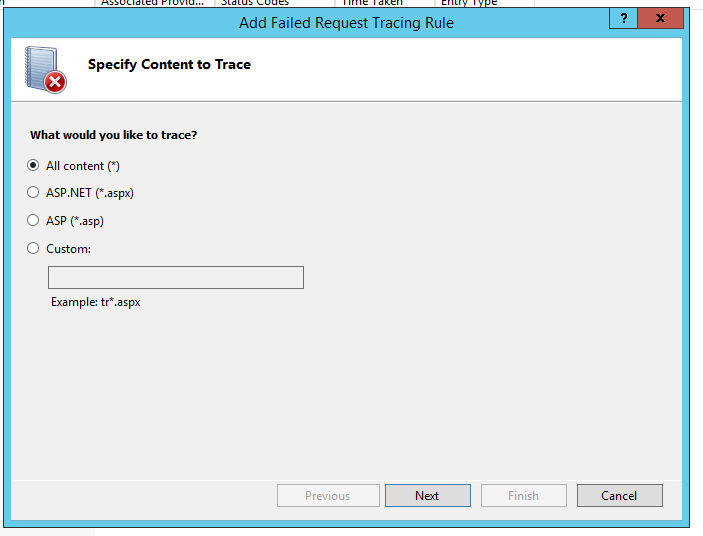
    6) Next, under actions select “Add…” and select “All content (*)” and click Next

    FRT4

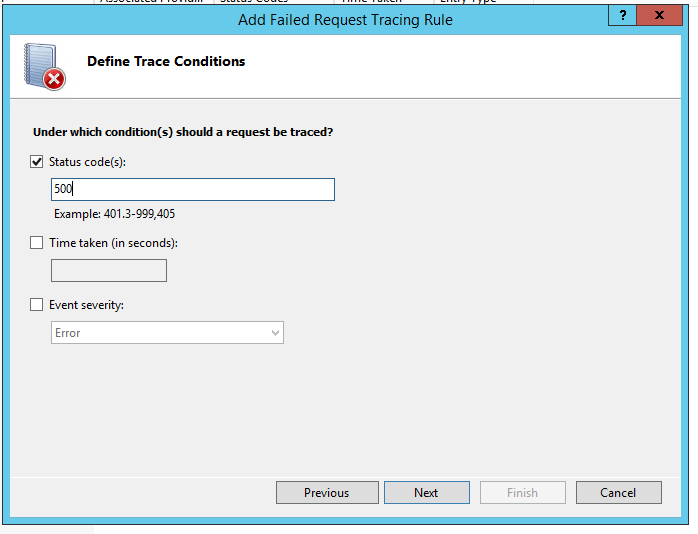
    7) Indicate the status code of 500 (and others where applicable) and click next again

    Frt5

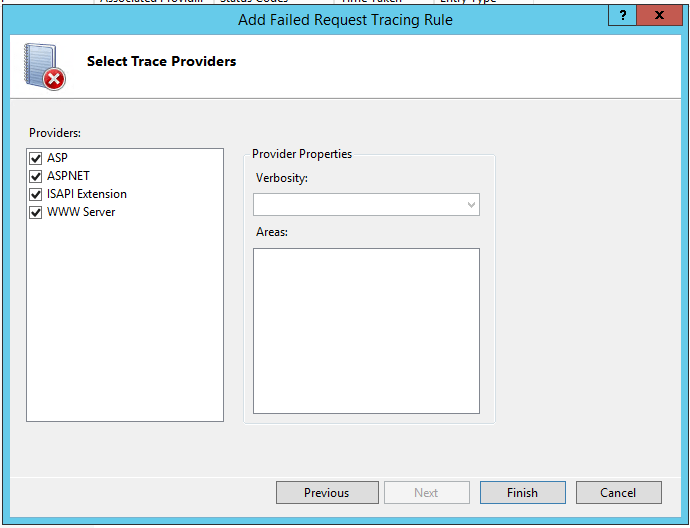
    8) Indicate your trace providers and click Finish

    FRT6

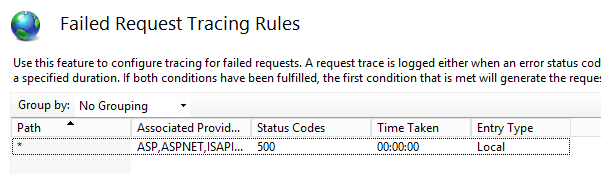
    You should now see your created Failed Request Tracing Rules.

    FRT7

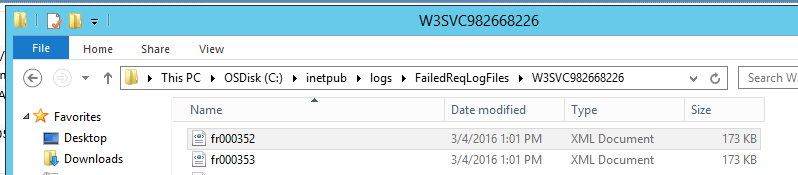
    Now go and refresh the browser a couple times to see your error again. Once that is logged then go to the trace logs. To find that location go back to the site in features view, select Failed Request Tracing and select “View Trace Logs…”

    FR8

    Double click to view the recorded log (you can use IE):

    FRT9

    Viewing these should at least help to identify the obvious when it is a line in the web.config or when there has been a setting changed as a result of saving a configuration option in SharePoint (or 3rd party products or web parts in SharePoint). Hope this helps, happy troubleshooting. Questions are always welcome.
     

    Help me out and share!

    • Email a link to a friend (Opens in new window) Email
    • Print (Opens in new window) Print
    • Share on LinkedIn (Opens in new window) LinkedIn
    • Share on Facebook (Opens in new window) Facebook
    • Share on X (Opens in new window) X
    • Share on Reddit (Opens in new window) Reddit
    • Share on Tumblr (Opens in new window) Tumblr
    • More
    • Share on Pinterest (Opens in new window) Pinterest
    • Share on Telegram (Opens in new window) Telegram
    • Share on WhatsApp (Opens in new window) WhatsApp
    Like Loading…

    +

    +

    +

    +

    +

    +

    + IIS, SharePoint, Troubleshooting
    + 500, Error, Logs, SharePoint, tracing, Troubleshooting, web part, xml

    +

    +

    +

    +

    +

    +

    +

    +

    +

    +

    +

    +

  • Exporting asp:GridView Results To A Microsoft Excel Spreadsheet in VB/C#

    03/10/2016

    +

    +

    +

    +

    +

    +

    I have received this requirement on more than one occasion so I thought it would benefit others if I posted these snippets. So here we go, let’s export a gridview as an excel file.

    For starters let’s add a couple controls to the front-end aspx page:

     
    <asp:Button ID="btnExport" runat="server" Text="Export Results To Excel" /> &amp;nbsp;&amp;nbsp;<br /><br />
    
    <asp:GridView ID="grdSearch" runat="server" CellPadding="3" BackColor="White" BorderColor="#CCCCCC" BorderStyle="None" BorderWidth="1px">
     <FooterStyle BackColor="White" ForeColor="#000066" />
     <HeaderStyle BackColor="#006699" Font-Bold="True" ForeColor="White" />
     <PagerStyle BackColor="White" ForeColor="#000066" HorizontalAlign="Left" />
     <RowStyle ForeColor="#000066" />
     <SelectedRowStyle BackColor="#669999" Font-Bold="True" ForeColor="White" />
     <SortedAscendingCellStyle BackColor="#F1F1F1" />
     <SortedAscendingHeaderStyle BackColor="#007DBB" />
     <SortedDescendingCellStyle BackColor="#CAC9C9" />
     <SortedDescendingHeaderStyle BackColor="#00547E" />
     </asp:GridView>
    

    I’m going to assume you know how to wire in your gridview to return results.

    With that assumption in place here is the click event that performs the export (in VB):

    You will need: Imports System.IO

    Protected Sub btnExport_Click(sender As Object, e As EventArgs) Handles btnExport.Click
            Try
                Response.Clear()
                Response.Buffer = True
                Response.ClearContent()
                Response.ClearHeaders()
                Response.Charset = ""
                Dim FileName As String = "filename" + DateTime.Now + ".xls"
                Dim strwritter As New StringWriter()
                Dim htmltextwrtter As New HtmlTextWriter(strwritter)
                Response.Cache.SetCacheability(HttpCacheability.NoCache)
                Response.ContentType = "application/vnd.ms-excel"
                Response.AddHeader("Content-Disposition", Convert.ToString("attachment;filename=") &amp; FileName)
                grdSearch.GridLines = GridLines.Both
                grdSearch.HeaderStyle.Font.Bold = True
                grdSearch.RenderControl(htmltextwrtter)
                Response.Write(strwritter.ToString())
                Response.[End]()
            Catch ex As Exception
                ' Do something important here if you expect strange results
            End Try
        End Sub
    

    Now in C#:

    You will need: using System.IO;

    try {
    	Response.Clear();
    	Response.Buffer = true;
    	Response.ClearContent();
    	Response.ClearHeaders();
    	Response.Charset = "";
    	string FileName = "filename" + DateTime.Now + ".xls";
    	StringWriter strwritter = new StringWriter();
    	HtmlTextWriter htmltextwrtter = new HtmlTextWriter(strwritter);
    	Response.Cache.SetCacheability(HttpCacheability.NoCache);
    	Response.ContentType = "application/vnd.ms-excel";
    	Response.AddHeader("Content-Disposition", Convert.ToString("attachment;filename=") + FileName);
    	grdSearch.GridLines = GridLines.Both;
    	grdSearch.HeaderStyle.Font.Bold = true;
    	grdSearch.RenderControl(htmltextwrtter);
    	Response.Write(strwritter.ToString());
    	Response.End();
    } catch (Exception ex) {
    	// Do something important here if you expect strange results
    }
    

    I realize you may not need some of the formatting that I used in this example so remove the Gridview related property assignments in the export snippet. Also, depending on how you format your gridview on the aspx page will dictate some of the formatting you have on the spreadsheet. Hope this helps, questions are welcome.

    Help me out and share!

    • Email a link to a friend (Opens in new window) Email
    • Print (Opens in new window) Print
    • Share on LinkedIn (Opens in new window) LinkedIn
    • Share on Facebook (Opens in new window) Facebook
    • Share on X (Opens in new window) X
    • Share on Reddit (Opens in new window) Reddit
    • Share on Tumblr (Opens in new window) Tumblr
    • More
    • Share on Pinterest (Opens in new window) Pinterest
    • Share on Telegram (Opens in new window) Telegram
    • Share on WhatsApp (Opens in new window) WhatsApp
    Like Loading…

    +

    +

    +

    +

    +

    +

    + .Net, C#, HTML, Office, Programming, VB, Web
    + .Net, ASP, C#, Excel, GridView, Microsoft, vb

    +

    +

    +

    +

    +

    +

    +

    +

    +

    +

    +

    +

  • How to deal with: WARN An invalid character was found in the mail header: ‘,’ in Sitecore

    02/29/2016

    +

    +

    +

    +

    +

    +

    If you are using Web Forms for Marketers in Sitecore then you may have an occasion where the email addresses that are being used to send messages to get updated by someone…then all of a sudden you start getting errors…then all of a sudden your phone starts ringing off the hook, right?

    So in the Sitecore logs you will see something similar to:

     868 13:12:53 WARN An invalid character was found in the mail header: ','.
    Exception: System.FormatException
    Message: An invalid character was found in the mail header: ','.
    Source: System
     at System.Net.Mail.DotAtomReader.ReadReverse(String data, Int32 index)
     at System.Net.Mail.MailAddressParser.ParseDomain(String data, Int32& index)
     at System.Net.Mail.MailAddressParser.ParseAddress(String data, Boolean expectMultipleAddresses, Int32& index)
     at System.Net.Mail.MailAddressParser.ParseMultipleAddresses(String data)
     at System.Net.Mail.MailAddressCollection.ParseValue(String addresses)
     at System.Net.Mail.Message..ctor(String from, String to)
     at System.Net.Mail.MailMessage..ctor(String from, String to)
     at System.Net.Mail.MailMessage..ctor(String from, String to, String subject, String body)
     at Sitecore.Form.Core.Pipelines.ProcessMessage.ProcessMessage.GetMail(ProcessMessageArgs args)
     at (Object , Object[] )
     at Sitecore.Pipelines.CorePipeline.Run(PipelineArgs args)
     at Sitecore.Form.Core.Submit.SubmitActionManager.ExecuteSaving(ID formID, ControlResult[] list, ActionDefinition[] actions, Boolean simpleAdapt, ID sessionID)

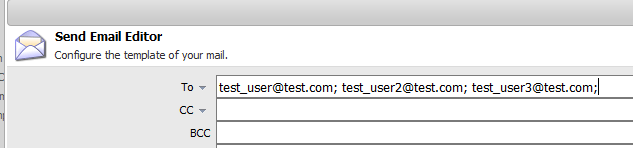
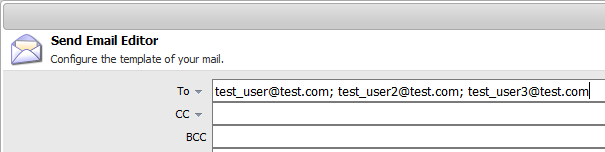
    Huh? OK, so let’s go look at the Web Form Send Email action in question:

    ss1wffm

    Nothing looks odd at first…until upon further research: I discovered after some reading about mail headers that the last entry of the recipients (To, CC, BCC) cannot accept a separator delimiter as a character on the end. You’ll also notice in outlook and other email clients that the behavior is the same.

    The fix? remove the last character and save/republish your form. Problem solved!

    ss2wffm

    Hope this helps. Questions are welcome!

    Help me out and share!

    • Email a link to a friend (Opens in new window) Email
    • Print (Opens in new window) Print
    • Share on LinkedIn (Opens in new window) LinkedIn
    • Share on Facebook (Opens in new window) Facebook
    • Share on X (Opens in new window) X
    • Share on Reddit (Opens in new window) Reddit
    • Share on Tumblr (Opens in new window) Tumblr
    • More
    • Share on Pinterest (Opens in new window) Pinterest
    • Share on Telegram (Opens in new window) Telegram
    • Share on WhatsApp (Opens in new window) WhatsApp
    Like Loading…

    +

    +

    +

    +

    +

    +

    + Email, Sitecore, Troubleshooting
    + Email, Email Headers, Logs, sitecore, Web Forms For Marketers

    +

    +

    +

    +

    +

    +

    +

    +

    +

    +

    +

    +

  • JavaScript HTML Redirect To Another URL

    02/03/2016

    +

    +

    +

    +

    +

    +

    There may be cases where you don’t have as free of access to the meta information or web.config to set redirects in place. You can also do this with JavaScript!

    Here’s the snippet (place this in between script tags in the body or applicable section in the body that allows HTML):

    <script type="text/javascript">
        window.location.replace("http://www.yourexamplesite.com/some-other-page.html");
    </script>
    

    Hope that helps.

    Help me out and share!

    • Email a link to a friend (Opens in new window) Email
    • Print (Opens in new window) Print
    • Share on LinkedIn (Opens in new window) LinkedIn
    • Share on Facebook (Opens in new window) Facebook
    • Share on X (Opens in new window) X
    • Share on Reddit (Opens in new window) Reddit
    • Share on Tumblr (Opens in new window) Tumblr
    • More
    • Share on Pinterest (Opens in new window) Pinterest
    • Share on Telegram (Opens in new window) Telegram
    • Share on WhatsApp (Opens in new window) WhatsApp
    Like Loading…

    +

    +

    +

    +

    +

    +

    + HTML, JavaScript, Web
    + HTML, JavaScript, redirect, script

    +

    +

    +

    +

    +

    +

    +

    +

    +

    +

    +

    +

Previous
1 … 7 8 9 10 11 … 14
Next

Linkedin

Tumblr

GitHub

Mastodon

Create a website or blog at WordPress.com

Loading Comments...
  • Subscribe Subscribed
    • @JaredMeredith
    • Join 75 other subscribers
    • Already have a WordPress.com account? Log in now.
    • @JaredMeredith
    • Subscribe Subscribed
    • Sign up
    • Log in
    • Report this content
    • View site in Reader
    • Manage subscriptions
    • Collapse this bar
%d