.Net, Troubleshooting, Visual Studio

How To Fix “no exports were found that match the constraint” In Visual Studio

So, you have that “no exports were found that match the constraint” message in Visual Studio, eh?

The first thing I would try doing on the affected version of visual studio is to go to programs and features, select the version and pick change: VSbugss3

When that loads let it repair. Once it does see if that resolves the issue.

VSbugss2

If it does not a more manual method that is to delete all of the contents of the ComponentModelCache folder from the following area (of which VS version is affected):

Put your username in the path:

VS 2012:

C:\Users\username\AppData\Local\Microsoft\VisualStudio\11.0\ComponentModelCache

VS 2013:

C:\Users\username\AppData\Local\Microsoft\VisualStudio\12.0\ComponentModelCache

VS 2015:

C:\Users\username\AppData\Local\Microsoft\VisualStudio\14.0\ComponentModelCache

It should look something like:

VSbugss1

If that fails there is also a patch that they released in response: https://www.microsoft.com/en-in/download/confirmation.aspx?id=36020#

HTML, JavaScript, Troubleshooting, Web

Check For Internet Explorer (IE) Compatibility Mode

Create a JavaScript file called iecheck.js and paste the following in the snippet:

function trueOrFalse() {
 return true;
}

function IeVersion() {
 // Set defaults
 var value = {
 IsIE: false,
 TrueVersion: 0,
 ActingVersion: 0,
 CompatibilityMode: false
 };

// Try to find the Trident version number
 var trident = navigator.userAgent.match(/Trident\/(\d+)/);
 if (trident) {
 value.IsIE = true;
 //Convert from the Trident version number to the IE version number
 value.TrueVersion = parseInt(trident[1], 10) + 4;
 }

// Try to find the MSIE number
 var msie = navigator.userAgent.match(/MSIE (\d+)/);
 if (msie) {
 value.IsIE = true;
 // Find the IE version number from the user agent string
 value.ActingVersion = parseInt(msie[1]);
 } else {
 // Must be IE 11 in "edge" mode
 value.ActingVersion = value.TrueVersion;
 }

// If we have both a Trident and MSIE version number, see if they're different
 if (value.IsIE && value.TrueVersion > 0 && value.ActingVersion > 0) {
 // In compatibility mode if the trident number doesn't match up with the MSIE number
 value.CompatibilityMode = value.TrueVersion != value.ActingVersion;
 }
 return value;
}

Once you have the JavaScript file then open your page where you are going to check for compatibility for and place a reference to the iecheck.js file in the head tag.

<script src="iecheck.js" type="text/javascript"></script>

After that you have multiple options on how to use the script.

For example, if you would like to check for compatibility and redirect then paste the following snippet inside of the body of your html:

<script type="text/javascript">
// 0 = not in compatibility view, 1 = in compatibility view
var ie = IeVersion();
if ((ie.CompatibilityMode == "0") && (ie.IsIE == "1")) {
window.location = "redirecttosomewhere.html"
}
else {
// do nothing, is in compatibility view
}
</script>

Another example would be if you just want to see the results on the page; just place this snippet inside of the body of your html:


<script type="text/javascript">
// <![CDATA[
var ie = IeVersion();
document.write("IsIE: " + ie.IsIE + "</br>");
document.write("TrueVersion: " + ie.TrueVersion + "</br>");
document.write("ActingVersion: " + ie.ActingVersion + "</br>");
document.write("CompatibilityMode: " + ie.CompatibilityMode + "</br>");
// ]]>
</script>

Hope this helps. Questions are always welcome.

IIS, SharePoint, Troubleshooting

Help! Need Help Diagnosing A 500 Errors In SharePoint? Try This…

Imagine the nightmare…you decided to sneak in a web part deployment in right before the start of the business day. Right after your deployment you see that the site is about to come back up…and…then nothing. A blank screen. In desperation you open Internet Explorer to try and see if it loads there as well..nothing but a 500 error. Then, the feeling rushes over you that this was a very bad decision. While we should address why you were doing an early morning deployment we shall spare you. 🙂 So what do you do now?

One of the best ways to see what is going on with a 500 error is to enabled Failed Request Tracing in IIS for the web site in question. Once enabled you can replicate the issue by refreshing the browser a few times; this should be more than enough to capture a few. Once captured then you will usually see where the issue is identified (especially with web.config changes that happen).

To do this:

1) Open IIS

2) Select the web site in question and open the Features View

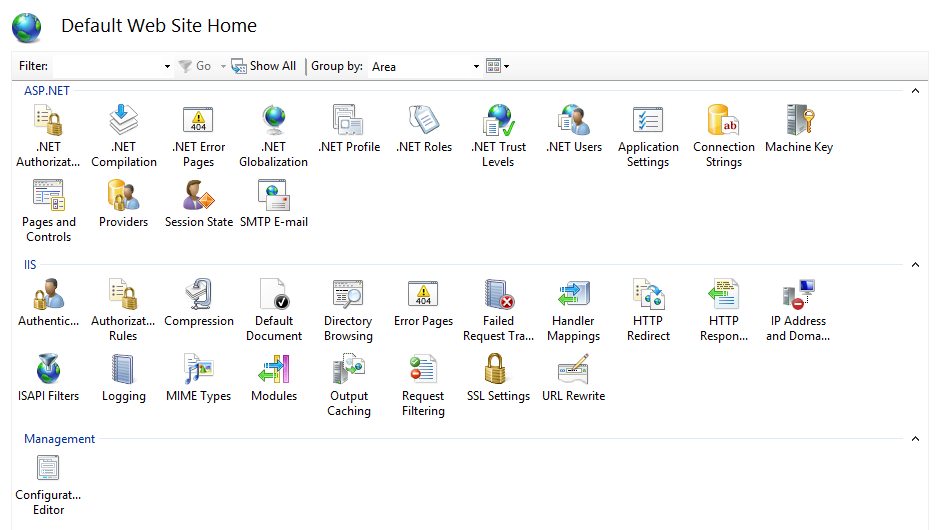
3) Under the IIS section select “Failed Request Tracing” by double-clicking it

FRT1

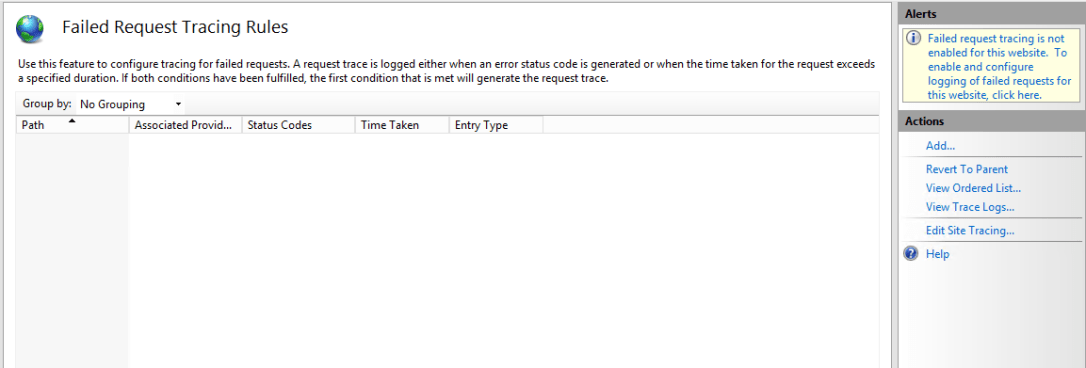
4) In the top right hand corner click the message in the Alerts section
FRT2

5) When the pop-up comes up then select to enable and take the default directory (unless you need it elsewhere, then specify another location) and hit OK

FR3

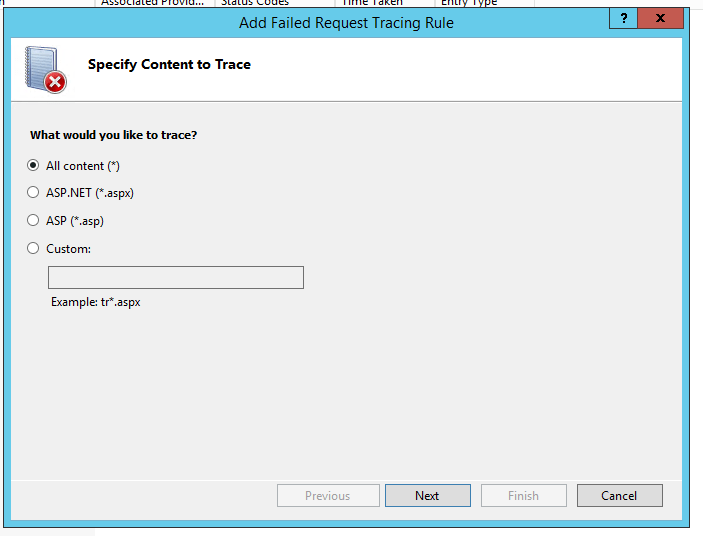
6) Next, under actions select “Add…” and select “All content (*)” and click Next
FRT4

7) Indicate the status code of 500 (and others where applicable) and click next again

Frt5

8) Indicate your trace providers and click Finish
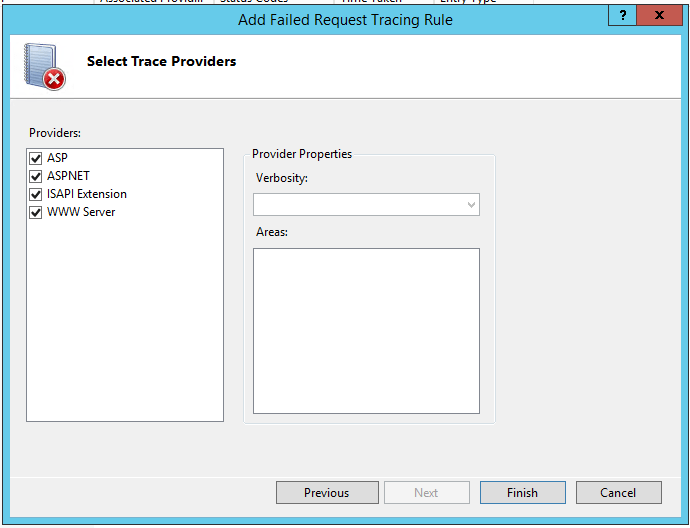
FRT6

You should now see your created Failed Request Tracing Rules.
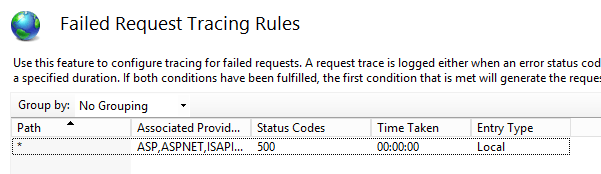
FRT7

Now go and refresh the browser a couple times to see your error again. Once that is logged then go to the trace logs. To find that location go back to the site in features view, select Failed Request Tracing and select “View Trace Logs…”

FR8

Double click to view the recorded log (you can use IE):

FRT9

Viewing these should at least help to identify the obvious when it is a line in the web.config or when there has been a setting changed as a result of saving a configuration option in SharePoint (or 3rd party products or web parts in SharePoint). Hope this helps, happy troubleshooting. Questions are always welcome.

 

Email, Sitecore, Troubleshooting

How to deal with: WARN An invalid character was found in the mail header: ‘,’ in Sitecore

If you are using Web Forms for Marketers in Sitecore then you may have an occasion where the email addresses that are being used to send messages to get updated by someone…then all of a sudden you start getting errors…then all of a sudden your phone starts ringing off the hook, right?

So in the Sitecore logs you will see something similar to:

 868 13:12:53 WARN An invalid character was found in the mail header: ','.
Exception: System.FormatException
Message: An invalid character was found in the mail header: ','.
Source: System
 at System.Net.Mail.DotAtomReader.ReadReverse(String data, Int32 index)
 at System.Net.Mail.MailAddressParser.ParseDomain(String data, Int32& index)
 at System.Net.Mail.MailAddressParser.ParseAddress(String data, Boolean expectMultipleAddresses, Int32& index)
 at System.Net.Mail.MailAddressParser.ParseMultipleAddresses(String data)
 at System.Net.Mail.MailAddressCollection.ParseValue(String addresses)
 at System.Net.Mail.Message..ctor(String from, String to)
 at System.Net.Mail.MailMessage..ctor(String from, String to)
 at System.Net.Mail.MailMessage..ctor(String from, String to, String subject, String body)
 at Sitecore.Form.Core.Pipelines.ProcessMessage.ProcessMessage.GetMail(ProcessMessageArgs args)
 at (Object , Object[] )
 at Sitecore.Pipelines.CorePipeline.Run(PipelineArgs args)
 at Sitecore.Form.Core.Submit.SubmitActionManager.ExecuteSaving(ID formID, ControlResult[] list, ActionDefinition[] actions, Boolean simpleAdapt, ID sessionID)

Huh? OK, so let’s go look at the Web Form Send Email action in question:

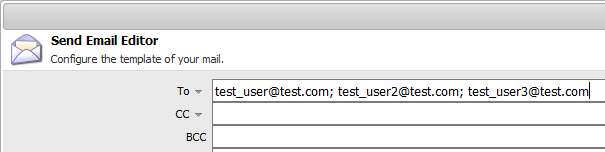
ss1wffm

Nothing looks odd at first…until upon further research: I discovered after some reading about mail headers that the last entry of the recipients (To, CC, BCC) cannot accept a separator delimiter as a character on the end. You’ll also notice in outlook and other email clients that the behavior is the same.

The fix? remove the last character and save/republish your form. Problem solved!

ss2wffm

Hope this helps. Questions are welcome!