C#, HTML, JavaScript, Programming, Web

Write a JavaScript/HTML Form Submit Post From C# APSX Code Behind

There may be a case where you are taking information from a form and need to post it to a web site somewhere else. One quick method of performing that post is to execute it from the code behind using C# (via context.response) and JavaScript. This is a scaled down example of a case where I was submitting a POST from the code behind of a web part control:

A couple things to note:

  • You can add as many fields as you wish to post, I am only using two
  • You can use string.Format to get C# variables to put directly in the POST
protected string value1;
protected string value2;

value1 = "something";
value2 = "something else";

Context.Response.Write("<form name='Form1' id='Form1' method='post' action='https://www.mywebsitetopostto.com/example'>");
Context.Response.Write("<input type='hidden' name='__VIEWSTATE' id='__VIEWSTATE' value='' />");
Context.Response.Write(string.Format("<input type='hidden' name='txtValue1' id='txtValue1' runat='server' value='{0}' />", value1));
Context.Response.Write(string.Format("<input type='hidden' name='txtValue2' id='txtValue2' runat='server' value='{0}' />", value2));
Context.Response.Write("</form>");
Context.Response.Write("document.Form1.submit();");
Context.Response.Flush();
Context.Response.End();

Ideally you would use this in a case where you are posting content and the page you are posting to will process and serve something after the form that receives your post processes what you sent. Please do not use this snippet and blame me for a blank page 🙂

C#, Programming, SharePoint, Web

Convert A Links List To A DropDownList By A Web Part In SharePoint 2013 (C#)

So I have been enjoying the benefit of Mike Smith’s article for a while now (http://techtrainingnotes.blogspot.com/2010/12/sharepoint-convert-links-list-to.html). A client I did a project for was wanting to carry this functionality forward to 2013. The problem: this method didn’t work in 2013.

So I took a programmatic approach to lose the JavaScript dependency. It also will sort the dropdown names by what you type as the description by using the sortedlist in the code behind. It’s fairly simple, here’s what I did:

  • Created a links list and populated some URLs and Descriptions (!!! You need both for below to work, otherwise remove the description dependency in my code !!!)
  • Create a SharePoint 2013 Visual Web Part project
  • Add the dropdownlist control to the control

In the .ascx control I have:

<asp:DropDownList ID="linkDropDown" runat="server" Font-Names="Arial" Font-Size="10pt"
Width="300px" OnSelectedIndexChanged="linkDropDown_SelectedIndexChanged" AutoPostBack="true" EnableViewState="true">
<asp:ListItem Text="Link to ..." Value="#"></asp:ListItem>
</asp:DropDownList>
  • Add the code to the code behind of the control

Now the code behind, here’s my using statements:

using System;
using System.ComponentModel;
using System.Web.UI.WebControls.WebParts;
using Microsoft.SharePoint;
using System.Collections;
using System.Web.UI;
using System.Web.UI.HtmlControls;
using System.Web.UI.WebControls;

and here is what I have in the Page_Load and the SelectedIndexChanged event

protected void linkDropDown_SelectedIndexChanged(object sender, EventArgs e)
{
Context.Response.Redirect(linkDropDown.SelectedValue.ToString());
}

protected void Page_Load(object sender, EventArgs e)
{
SortedList sortedLists = new SortedList();

using (SPSite siteCol = new SPSite("http://mysharepoint2013site/"))
{
using (SPWeb web = siteCol.RootWeb)
{
SPList list = web.GetList("/Lists/NameOfLinksList");
SPListItemCollection items = list.GetItems();

foreach (SPListItem it in items)
{
SPFieldUrlValue fieldValue = new SPFieldUrlValue(it["URL"].ToString());
string description = fieldValue.Description;
string url = fieldValue.Url;
sortedLists.Add(description, url);
}
}

IDictionaryEnumerator enumerator = sortedLists.GetEnumerator();
while (enumerator.MoveNext())
{
ListItem listitem = new ListItem();
listitem.Text = enumerator.Key.ToString();
listitem.Value = enumerator.Value.ToString();
linkDropDown.Items.Add(new ListItem(listitem.Text.ToString(), listitem.Value.ToString()));
}
}

Deploy and enjoy!

C#, Programming, SharePoint, Web

Convert Doc/Docx Files To PDF In SharePoint 2013 Using Word Automation Services (C#)

Most of you whom are searching around on this are aware of the solution for SharePoint 2010 (https://msdn.microsoft.com/en-us/library/office/ff181518(v=office.14).aspx). And chances are after you tried on your own to do this for 2013 that there was no List Definition type in VS, right? So after finding this (https://camerondwyer.wordpress.com/2013/09/20/how-to-create-a-custom-sharepoint-list-definition-using-visual-studio-2012/) I decided to frankenstein the old methods with the updated way to do it in Visual Studio. The results of the successful experiment are below.

Code It

This article describes the following steps to show how to call the Word Automation Services to convert a document:

  1. Creating a SharePoint 2013 Empty Project and Adding the SharePoint list.
  2. Adding a reference to the Microsoft.Office.Word.Server assembly.
  3. Adding an event receiver.
  4. Adding the sample code to the solution.

Creating a SharePoint 2013 List Definition (sort of) Application in Visual Studio 2012

This article uses a SharePoint 2013 list definition application for the sample code.

To create a SharePoint 2013 list definition application in Visual Studio 2012

  1. Start Microsoft Visual Studio 2012 as an administrator.
  2. In Visual Studio 2012 select File | New Project
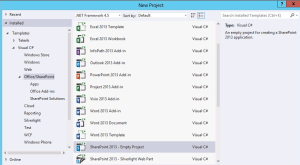
  3. Select Templates | Visual C# | Office/SharePoint | SharePoint 2013 – Empty Project, Provide a name and location for the project/solution and OKcapture1-vsprojectName the project and solution something meaningful (ConvertWordToPDF perhaps?).
    To create the solution, click OK.
  4. Select a site to use for debugging and deployment.
  5. Select the site to use for debugging and the trust level for the SharePoint solution.
    Note
    Make sure to select the trust level Deploy as a farm solution. If you deploy as a sandboxed solution, it does not work because the solution uses the Microsoft.Office.Word.Server assembly. This assembly does not allow for calls from partially trusted callers.
  6. To finish creating the solution, click Finish.
  7. Once the new solution has been created, we can use the new Visual Designer to create the List Definition. Right click the project in the solution explorer and select Add | New Item
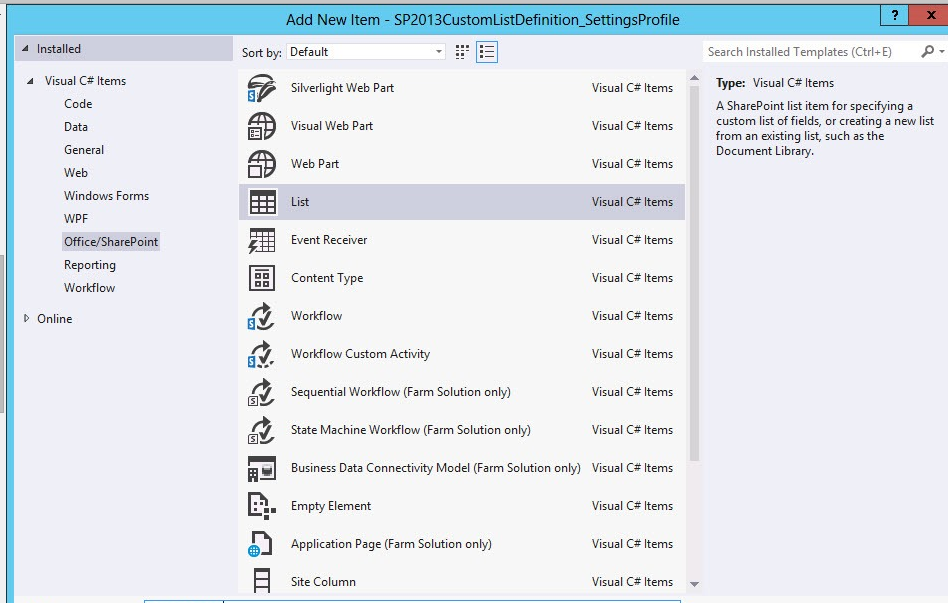
  8. Select Visual C# Items | Office/SharePoint | List, provide a name and click OK
  9. Provide a display name for the list. Go with the “Create a customizable list template and a list instance of it” and choose the Document Library.

Adding a Reference to the Microsoft Office Word Server Assembly

To use Word Automation Services, you must add a reference to the Microsoft.Office.Word.Server to the solution.

To add a reference to the Microsoft Office Word Server Assembly

  1. In Visual Studio, from the Project menu, select Add Reference.
  2. Locate the assembly. By using the Browse tab, locate the assembly. The Microsoft.Office.Word.Server assembly is located in the SharePoint 2013 ISAPI folder. This is usually located at c:\Program Files\Common Files\Microsoft Shared\Web Server Extensions\15\ISAPI\. After the assembly is located, click OK to add the reference.

Adding an Event Receiver

This article uses an event receiver that uses the Microsoft.Office.Word.Server assembly to create document conversion jobs and add them to the Word Automation Services conversion job queue.

To add an event receiver

  1. In Visual Studio, on the Project menu, click Add New Item.
  2. In the Add New Item dialog box, in the Project Templates pane, click the Visual C# SharePoint 2013 template.
  3. In the Templates pane, click Event Receiver.
  4. Name the event receiver ConvertWordToPDFEventReceiver and then click Add.
    The event receiver converts Word Documents after they are added to the List. Select the An item was added item from the list of events that can be handled.
  5. Click Finish to add the event receiver to the project.

Adding the Sample Code to the Solution

Replace the contents of the ConvertWordToPDFEventReceiver.cs source file with the following code. Just remember to make sure you replace “Word Automation Services” with the name of it in the web applications in central admin.

using System;
using System.Security.Permissions;
using Microsoft.SharePoint;
using Microsoft.SharePoint.Security;
using Microsoft.SharePoint.Utilities;
using Microsoft.SharePoint.Workflow;

using Microsoft.Office.Word.Server.Conversions;

namespace ConvertWordToPDF.ConvertWordToPDFEventReceiver
{
  /// &lt;summary&gt;
  /// List Item Events
  /// &lt;/summary&gt;
  public class ConvertWordToPDFEventReceiver : SPItemEventReceiver
  {
    /// &lt;summary&gt;
    /// An item was added.
    /// &lt;/summary&gt;
    public override void ItemAdded(SPItemEventProperties properties)
    {
      base.ItemAdded(properties);

      // Verify the document added is a Word document
      // before starting the conversion.
      if (properties.ListItem.Name.Contains(".docx") 
        || properties.ListItem.Name.Contains(".doc"))
      {
        //Variables used by the sample code.
        ConversionJobSettings jobSettings;
        ConversionJob pdfConversion;
        string wordFile;
        string pdfFile;

        // Initialize the conversion settings.
        jobSettings = new ConversionJobSettings();
        jobSettings.OutputFormat = SaveFormat.PDF;

        // Create the conversion job using the settings.
        pdfConversion = 
          new ConversionJob("Word Automation Services", jobSettings);

        // Set the credentials to use when running the conversion job.
        pdfConversion.UserToken = properties.Web.CurrentUser.UserToken;

        // Set the file names to use for the source Word document
        // and the destination PDF document.
        wordFile = properties.WebUrl + "/" + properties.ListItem.Url;
        if (properties.ListItem.Name.Contains(".docx"))
        {
          pdfFile = wordFile.Replace(".docx", ".pdf");
        }
        else
        {
          pdfFile = wordFile.Replace(".doc", ".pdf");
        }

        // Add the file conversion to the conversion job.
        pdfConversion.AddFile(wordFile, pdfFile);

        // Add the conversion job to the Word Automation Services 
        // conversion job queue. The conversion does not occur
        // immediately but is processed during the next run of
        // the document conversion job.
        pdfConversion.Start();

      }
    }
  }
}

Deploy and enjoy!

Programming, Sitecore

Encrypt And Decrypt A Sitecore ConnectionStrings.Config File

Encrypting .Net application web.config files are easy enough. However Sitecore is NOT a fan of you messing with the web.config. This is even part of the reason the connection strings are stored out into a separate file in Sitecore. I’ll go through a quick method of taking care of doing it on the separate Sitecore file.

  • Ensure you have .Net framework installed where you are going to perform the encryption (my examples are 4.0, you can use 2.0 if need be)
  • !!!IMPORTANT!!! Make a backup of your Sitecore ConnectionStrings.config file
  • Create a folder on C: to hold your encrypt/decrypt batch files (example will be C:\decrypter) where the .Net framework exists
  • Open notepad and create a batch file (encrypt.bat), put the following in for your encryption statement and then save it to your folder you just created
echo Encrypting app_config/connectionstrings.config
 C:\Windows\Microsoft.NET\Framework64\v4.0.30319\aspnet_regiis.exe -pef "connectionStrings" "C:\decrypter"
 Pause
  • Repeat this step for the decryption statement (decrypt.bat)
echo Encrypting app_config/connectionstrings.config
 C:\Windows\Microsoft.NET\Framework64\v4.0.30319\aspnet_regiis.exe -pdf "connectionStrings" "C:\decrypter"
 Pause
  • Create a blank web.config (THIS IS YOUR WEB.CONFIG YOU MADE AND NOT THE SITECORE WEB.CONFIG!!!), put and wrap your Sitecore connection strings (from ConnectionStrings.config) inside and save it to the folder you created. it should look something like:
<?xml version="1.0" encoding="utf-8"?>
 <configuration>
 <connectionStrings>
 <add name="core" connectionString="user id=sitecoreuser;password=sitecorepw;Data Source=servernameorip;Database=Sitecore_Core" />
 <add name="master" connectionString="user id=sitecoreuser;password=sitecorepw;Data Source=servernameorip;Database=Sitecore_Master" />
 <add name="web" connectionString="user id=sitecoresql;password=sitecorepw;Data Source=servernameorip;Database=Sitecore_Web" />
 <add name="reporting" connectionString="user id=sitecoresql;password=sitecorepw;Data Source=servernameorip;Database=Sitecore_Analytics" />
 </connectionStrings>
 </configuration>
  •  Once you have both batch files and the web.config then run the encrypt batch file as an administrator. It will look something like this:

encrypt

  • You’ll then have a web.config in your folder now similar to this:
<?xml version="1.0" encoding="utf-8"?>
<configuration>
<connectionStrings configProtectionProvider="RsaProtectedConfigurationProvider">
<EncryptedData Type="http://www.w3.org/2001/04/xmlenc#Element"
xmlns="http://www.w3.org/2001/04/xmlenc#">
<EncryptionMethod Algorithm="http://www.w3.org/2001/04/xmlenc#tripledes-cbc" />
<KeyInfo xmlns="http://www.w3.org/2000/09/xmldsig#">
<EncryptedKey xmlns="http://www.w3.org/2001/04/xmlenc#">
<EncryptionMethod Algorithm="http://www.w3.org/2001/04/xmlenc#rsa-1_5" />
<KeyInfo xmlns="http://www.w3.org/2000/09/xmldsig#">
<KeyName>Rsa Key</KeyName>
</KeyInfo>
<CipherData>
<CipherValue>(you'll have a long cipher here)</CipherValue>
</CipherData>
</EncryptedKey>
</KeyInfo>
<CipherData>
<CipherValue>(you'll have a long cipher here)</CipherValue>
</CipherData>
</EncryptedData>
</connectionStrings>
</configuration>
  • Once completed take the connectionStrings section of the web.config and replace your ConnectionStrings.config file with the encrypted connectionStrings section (run notepad in admin mode if your sitecore is in the web root).
  • Recycle the app pool to refresh. You should now be encrypted!
  • If this fails for you at some point then replace your Sitecore connectionStrings.config file with the backup you took at the start.
  • And yes, to decrypt (to update your strings) put your encrypted connectionstrings section in your web.config (THIS IS YOUR WEB.CONFIG YOU MADE AND NOT THE SITECORE WEB.CONFIG!!!) in the windows folder you made and run the decrypt.bat as an admin. You should get:

decrypt

Again, I hope this helps someone. Questions and comments are always welcome! And for the sake of hoping I catch the skimmers here, DO NOT MODIFY THE SITECORE WEB.CONFIG. DO THIS ON THE CONNECTIONSTRINGS.CONFIG! You have been warned…

MongoDB, Sitecore

Connect Sitecore xDB To A MongoDB On Rackspace’s ObjectRocket Platform With SSL

This was a fun experience. Anyway, let’s go. Got a 5GB $149/mo Medium pricing package from Object Rocket (Note: Small does not have SSL in its package).

ORPricing

So after you get someone to kindly pay for your package then you will get a login to Object Rocket and (more importantly) the ability to create a mongodb instance:

instance

Then once you have your instance you can create your user to add to the instance:

adduser

Once you have an instance and a user added to it then grab your SSL address:

address

So now you have instance databases, a database user, and a SSL address to connect to. From here we move to Sitecore. For the sake of keeping this short we are going to assume you have Sitecore Analytics enabled in your instance.

Once you have worked your magic then navigate to your ConnectionStrings.config (located in your web root/Website/App_Config and add the connection strings for the four pieces (analytics, tracking.live, tracking.history, and tracking.contact):

<add name="analytics" connectionString="mongodb://easyaspieuser:easyaspiepassword@iad-mongos2.objectrocket.com:25123/EASYASPIE_analytics?ssl=true;sslverifycertificate=false" />
<add name="tracking.live" connectionString="mongodb://easyaspieuser:easyaspiepassword@iad-mongos2.objectrocket.com:25123/EASYASPIE_live?ssl=true;sslverifycertificate=false" />
<add name="tracking.history" connectionString="mongodb://easyaspieuser:easyaspiepassword@iad-mongos2.objectrocket.com:25123/EASYASPIE_tracking_history?ssl=true;sslverifycertificate=false" />
<add name="tracking.contact" connectionString="mongodb://easyaspieuser:easyaspiepassword@iad-mongos2.objectrocket.com:25123/EASYASPIE_tracking_contact?ssl=true;sslverifycertificate=false" />

A couple things of note:

  • ssl=true indicates to sitecore and mongo that you are going to connect with SSL.
  • You can test your connection with a tool like Robomongo or Mongovue.
  • If you have an instance that has a network appliance in front of it (like in my case) then you will need to add sslverifycertificate=false to keep the SSL connection from trying to read a .pem file from you.
  • Parameters you pass need to be separated by a semi-colon. Yes, I thought ampersand as well (and even see it documented as such here). ObjectRocket was kind enough to help me figure that out.
  • If you are in a DMZ that is heavily firewalled then you will need the port number firewall exception put in for you (for my example it would be TCP 25123)
  • Troubleshoot by reading the Sitecore logs (usually located in your website instance/data/logs/)

Getting a successful connection will bring up data:

analytics

I hope this helps, questions are welcome!